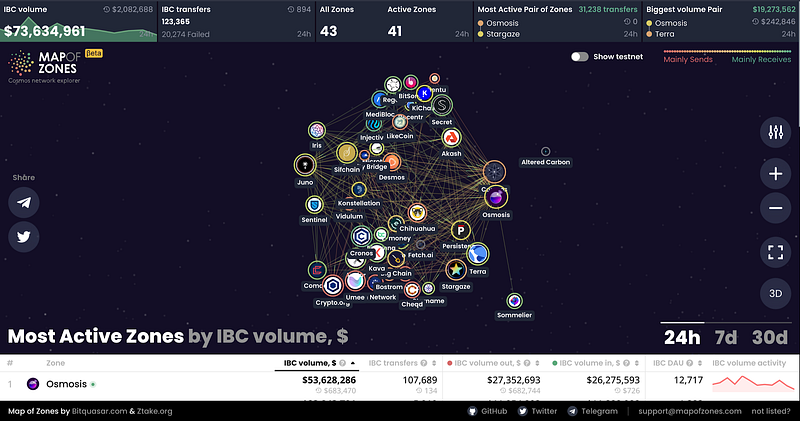
This article will introduce in digestible format how to transfer assets from the Cosmos blockchain to other IBC-enabled blockchains, and vice versa. The “backbone of the Cosmos ecosystem”, the Inter-Blockchain Communication protocol (IBC) allows blockchains to communicate with each other, and in so doing, handles asset transference across different blockchains. In other words, using IBC, we can transfer assets between chains.
First and foremost, one may find which blockchains are connected to Cosmos through IBC by going to Map of Zones.
Using Keplr Wallet (extension)
The method outlined below is the easiest and most straightforward approach to transfer assets between all IBC enabled blockchains. Note: You will need native coins in their native chains to pay for the gas fee in order to swap your IBC assets.
Step 1: Install Keplr wallet (Extension)
Step 2: Create a new wallet or import an existing Cosmos wallet seed phrase into Keplr wallet
Step 3: Transfer “ATOM” token to wallet, either from a centralised exchange, or swap to Cosmos-native “ATOM” using THORChain.
Step 4: Enable IBC Transfers
Click on the menu and go to Settings and toggle on “show Advanced IBC Transfers”.
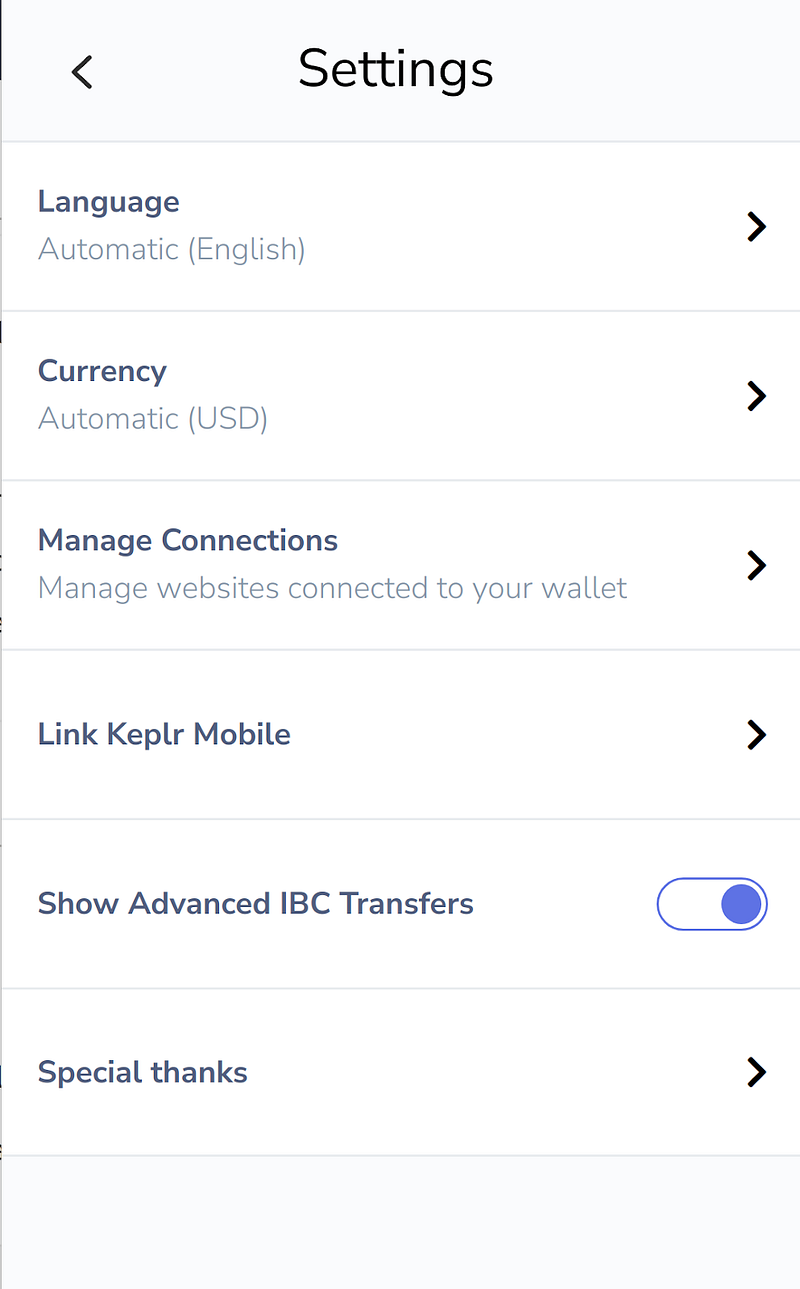
Once enabled, return to the wallet and the IBC transfer option will now be visible .
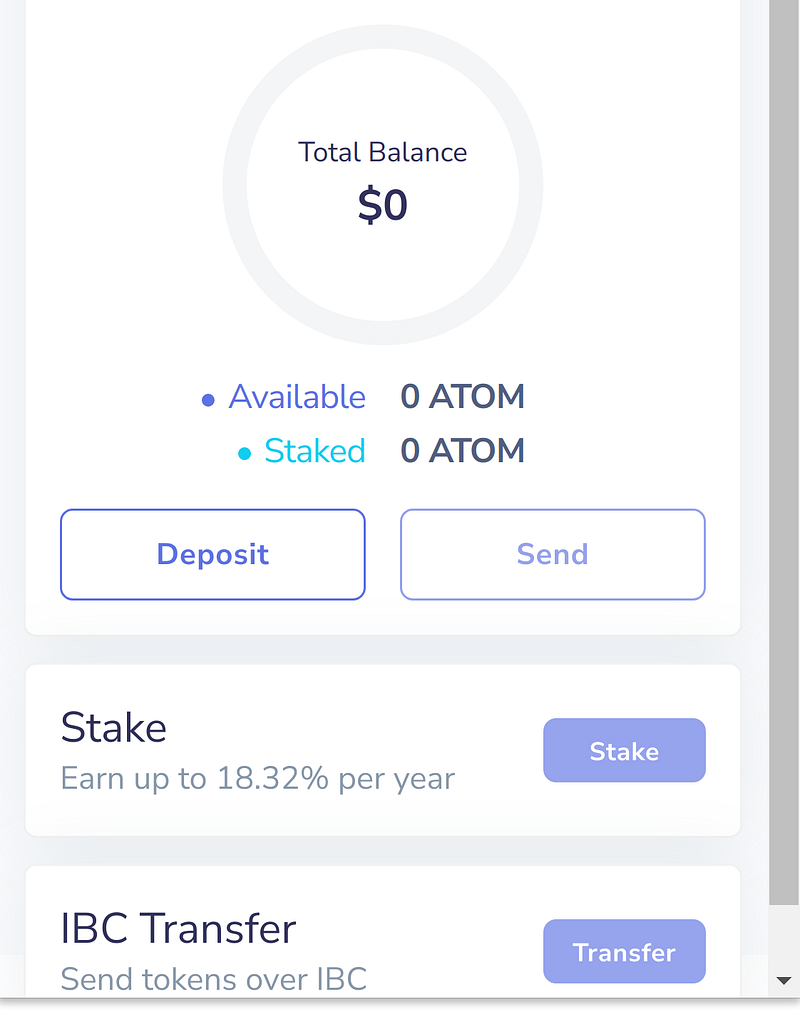
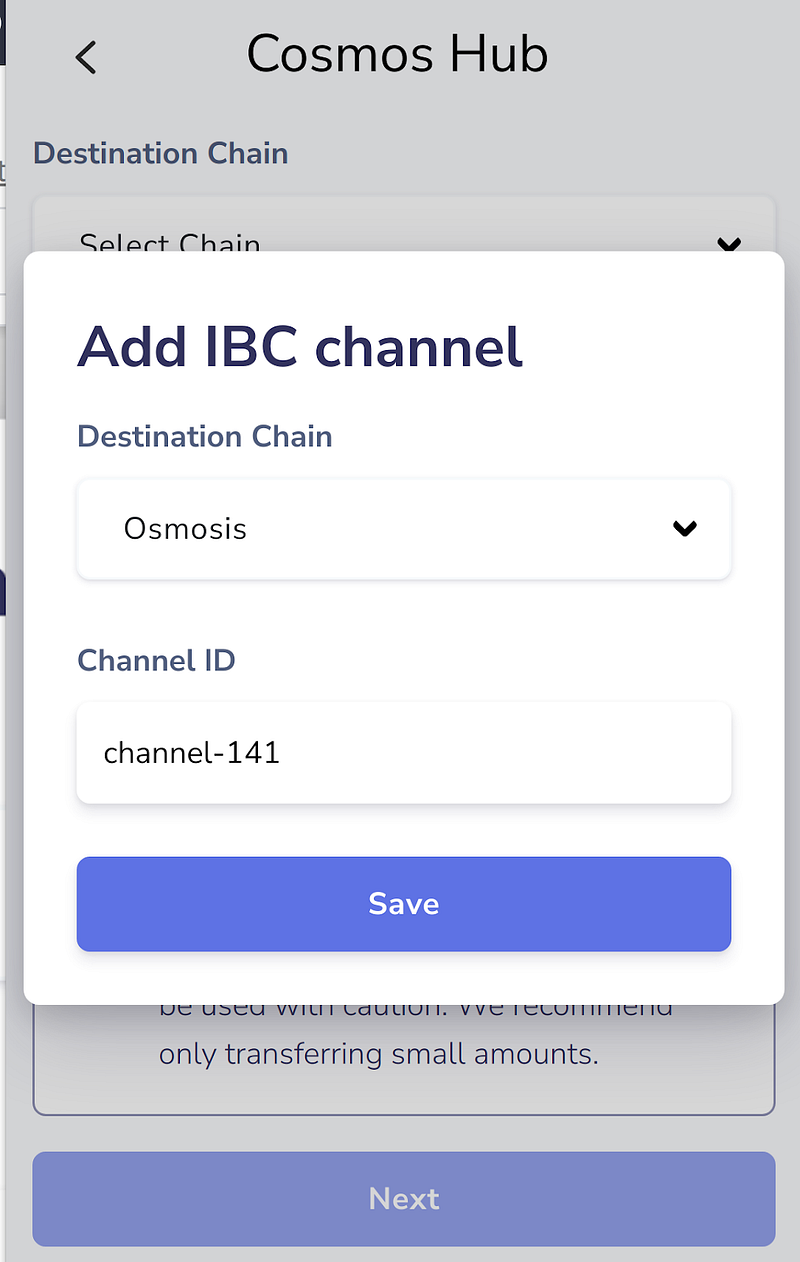
Step 5: Click on Transfer and choose channels (relayer channels for IBC transfers), click “New IBC Transfer Channel”, and the dialog box will open, as in the picture below.
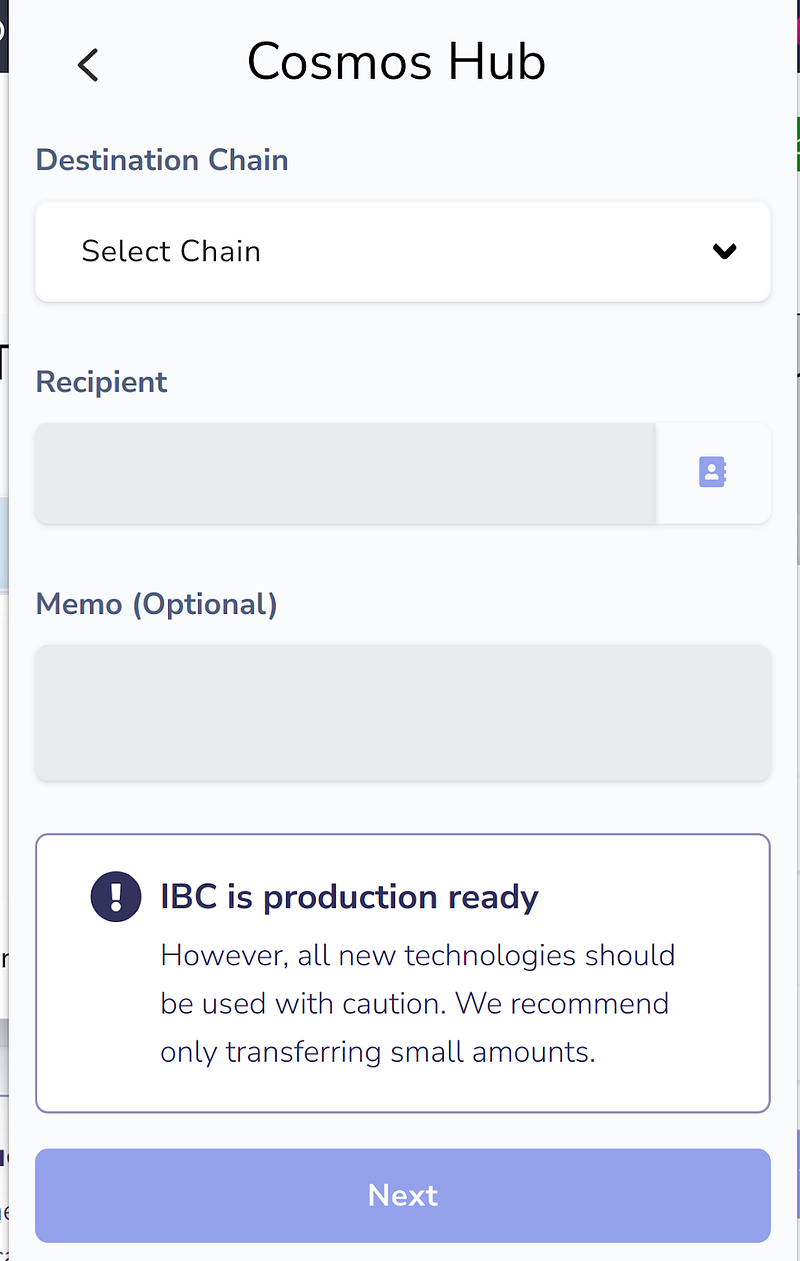
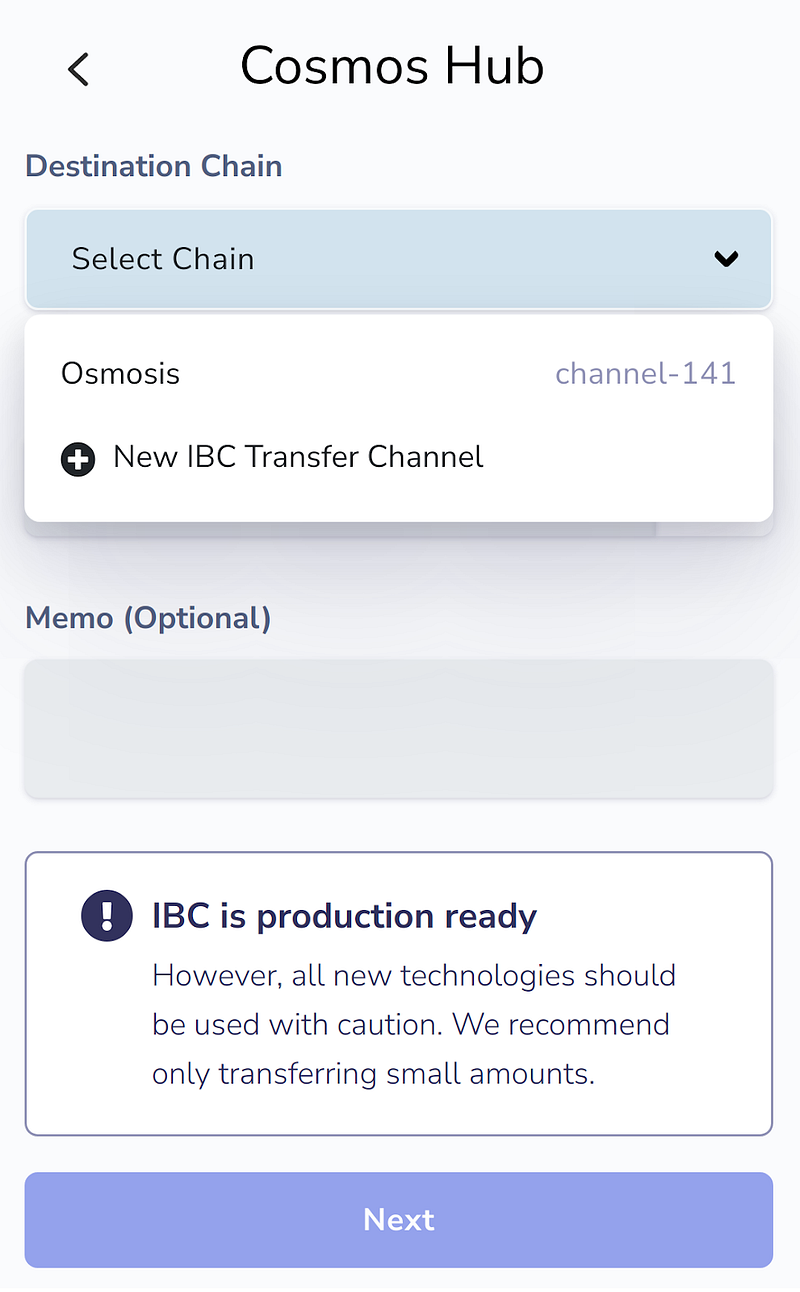
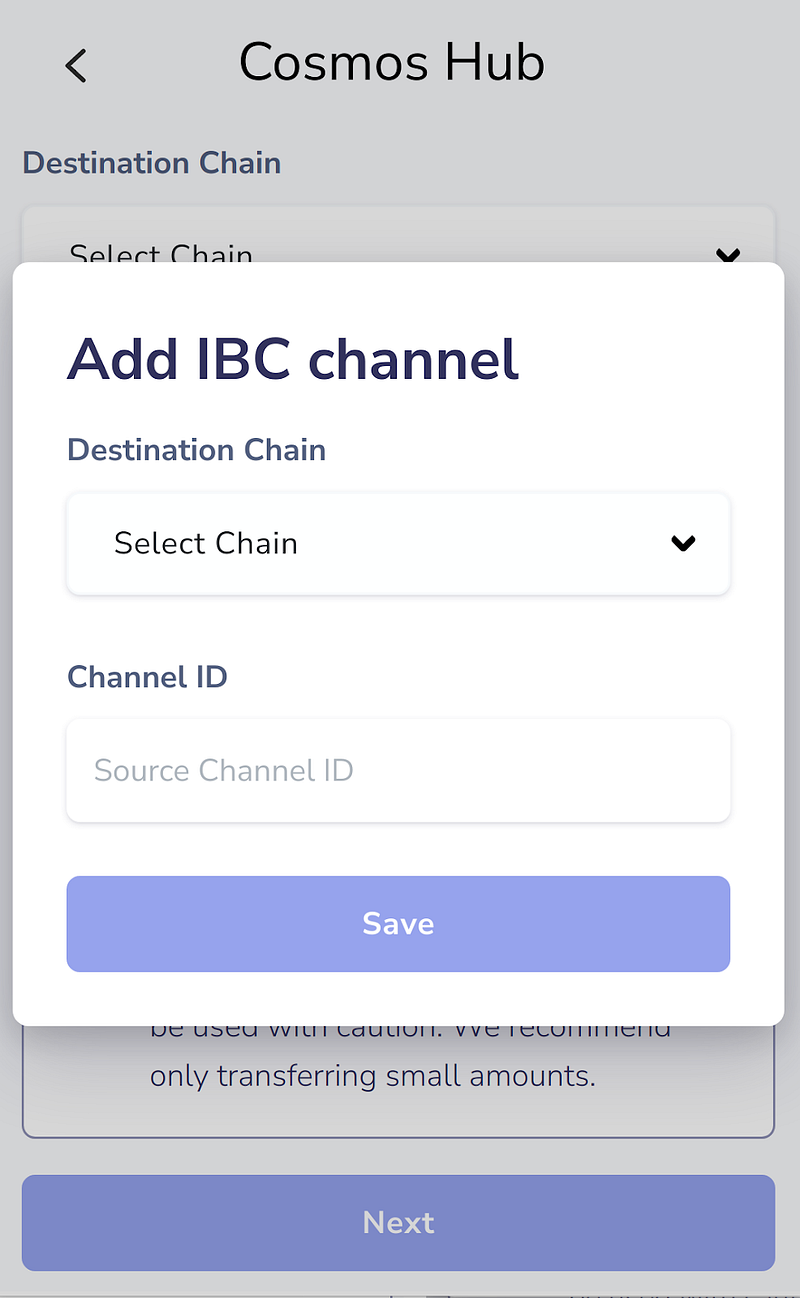
Image credit: Keplr wallet
Step 6: Chain and source Channel ID information
Go to https://mintscan.io/, and select which blockchain you wish to transfer to. For our example below, we will transfer to Osmosis, so we will select Osmosis on the mintscan page.
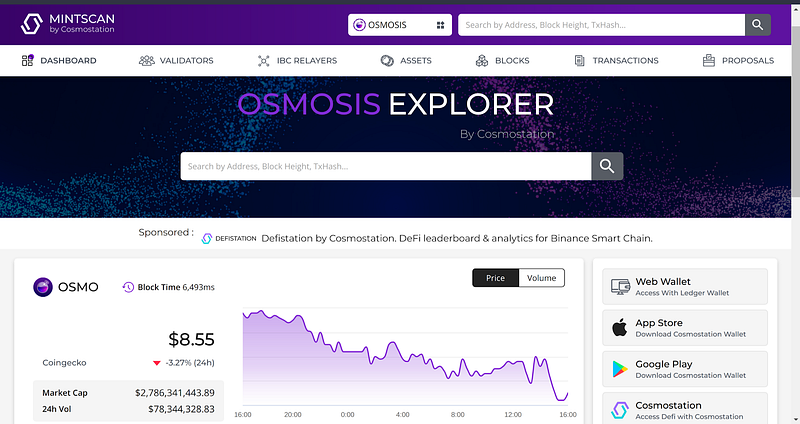
Next, click on “IBC RELAYERS” in the toolbar and search for “COSMOS”. Choose one of the IBC relayer channel info under “COSMOS” which is active at that time with high volume of transactions (active in that it shows a green colour line — see below).
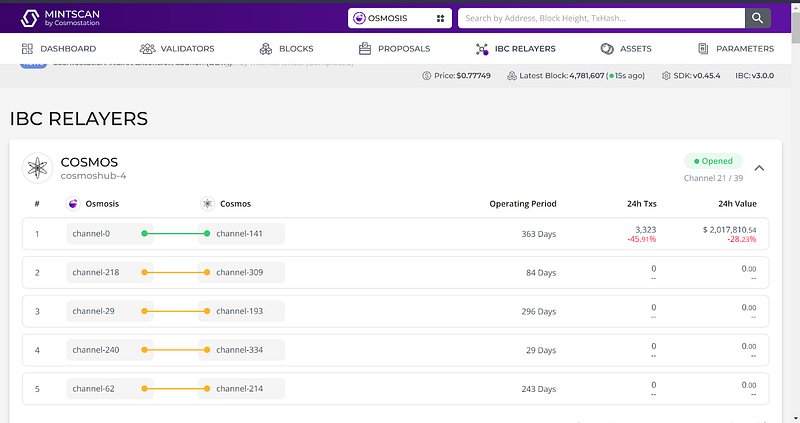
As you can see above, for this example we’ve chosen “channel-141”. After choosing this channel info, add it in “Add IBC channel” and select the chain as “Osmosis”. Then, enter channel ID as “channel-141” and save.
Step 7: Transfer your assets
Again open the IBC Transfer option, choose the channel, and paste your Osmosis address from Keplr wallet.
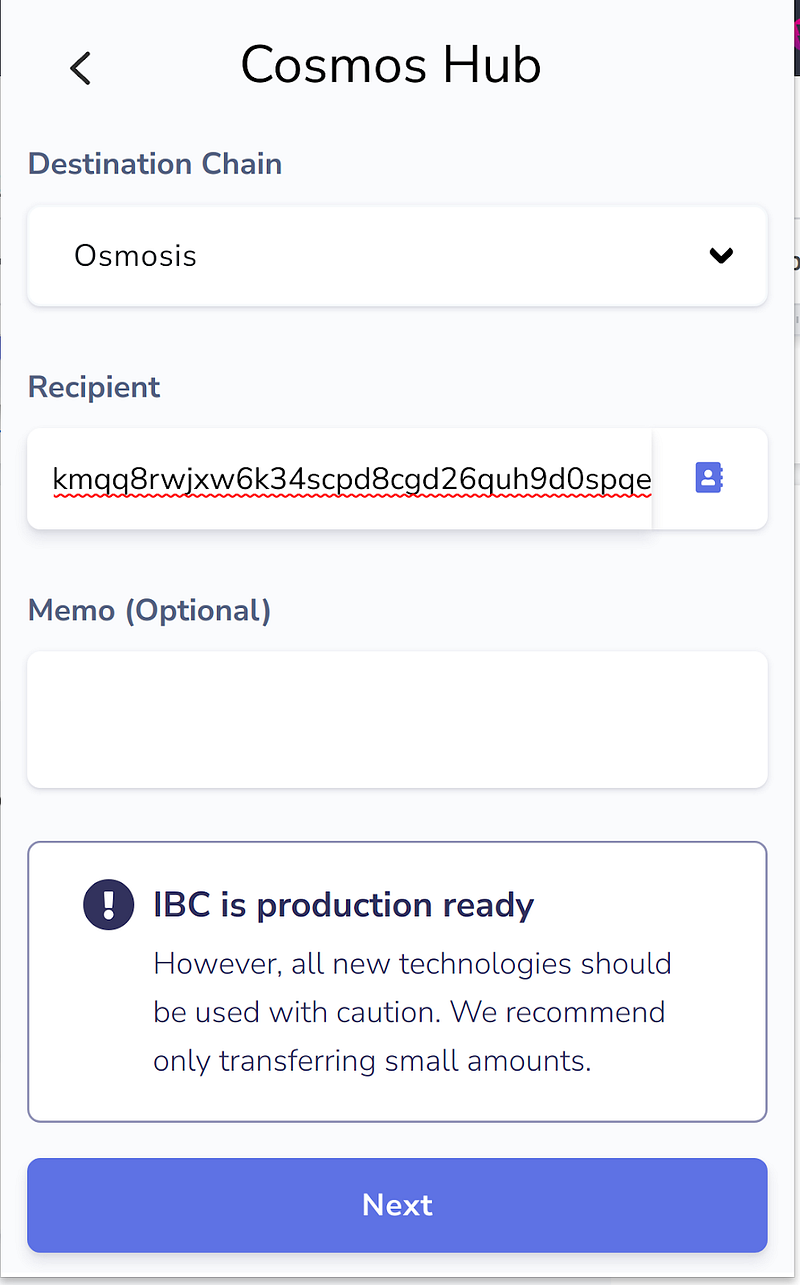
Press “next” and then select the asset in your wallet — e.g. ATOM. Then enter the amount and submit the transaction.
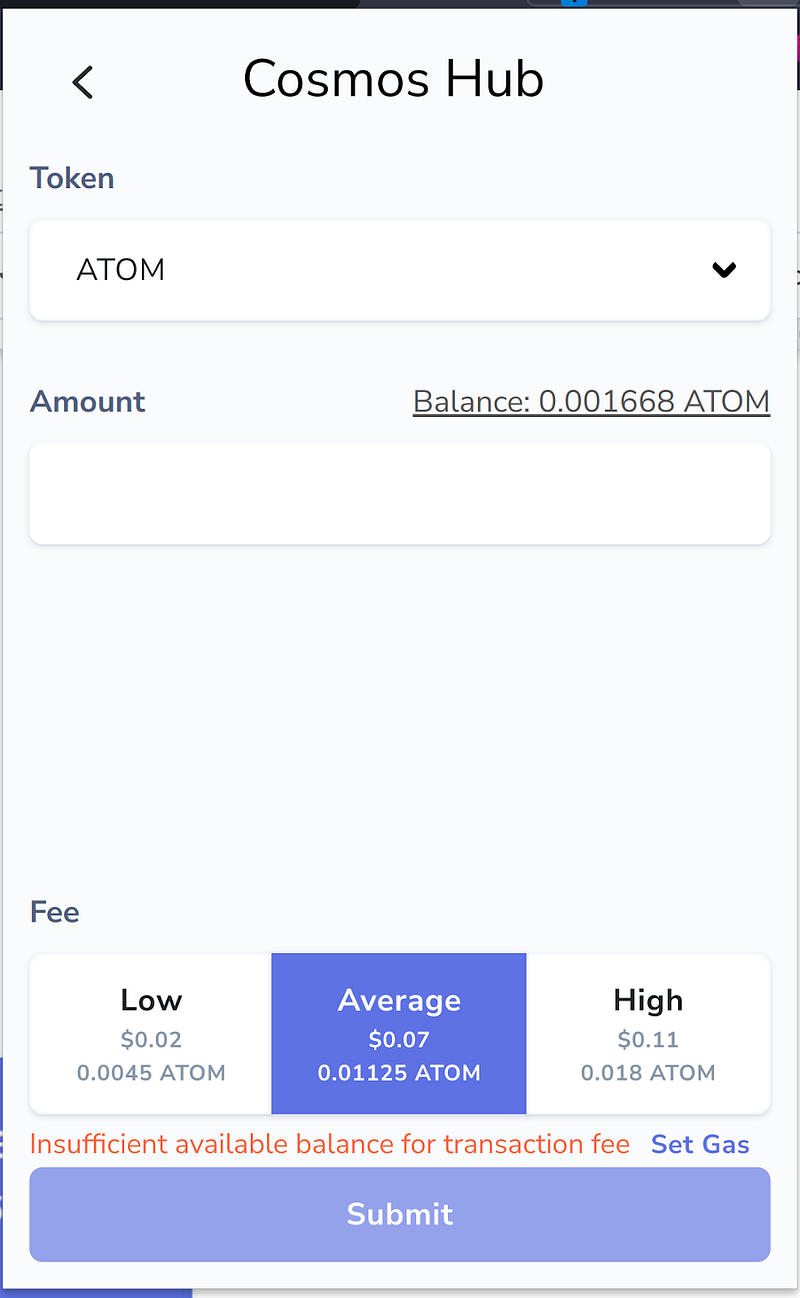
Image credit: Keplr wallet
Step 8: Check your destination wallets for successfully transferred assets.
After the IBC transfer transaction is successful, you can view your assets in your wallet.
To transfer the assets back to Cosmos, complete the following steps:
IBC relayer channel is already saved if you transfer from cosmos to osmosis or other IBC enabled blockchain . or add channel info like in the above “step-6” for source blockchain (here in this case from “OSMOSIS”) .
After adding channel info , follow the procedure of “step-7” but instead of “COSMOS”, you have to do this in source blockchain from where the assets are being sent (here in this case from “OSMOSIS”) .
After submission, the assets will be displayed in the destination blockchain.
Reminder notes:
Keep an eye on IBC relayers which are online at the time of doing transfer in https://mintscan.io/
As stated above, you will need to pay a native gas fee for every IBC transfer.
If you are completing this process with the Secret Network, you will have to generate a viewing key.
IBC Transfer takes a minute or two to arrive in the destination blockchain , you can check status at https://mintscan.io/ .
Feel free to hop into the TC University Discord to chat about this, or any other THORChain questions that you may have.
Explore THORChain: Website, X, Telegram, Developer Discord.
Explore Maya Protocol, the first friendly fork of THORChain: Website, X, Discord, Telegram.
Decentralized, permissionless, non-custodial, trust-minimized, open-sourced, economic-secured, non-wrapped, native-to-native cross-chain swaps, savings and soon, lending!

Related articles
![THORChain May 15, 2026 Exploit Report #1]()
May. 20, 2026
THORChain Exploit Report #1
![]()
May. 14, 2026
Explanation of the 6 Preset Strategies to Help Create Your CCL Strategy
![]()
May. 13, 2026
The Casino Problem: When Crypto Forgets What It Was Built For
![]()
May. 12, 2026
THORChain Protocol Upgrade v3.18
![]()
May. 11, 2026
Dash is coming to THORChain
![]()
May. 8, 2026
Monero Merged, Reserve Burn, Marketing Update | Podcast #196
![]()
May. 7, 2026
Marketing Update: Feb - March 2026
![]()
May. 5, 2026
RUJI Staking Rewards Are Live, Earn Real Protocol Revenue on Rujira
![]()
May. 4, 2026
Bior Labs Cards Are Imminent: Bill Pay, $10K Virtual Cards and a Stablecoin Alpha
![]()
May. 2, 2026
Live from Bitcoin Vegas: 2 bps Stable Swaps, v3.18 Next Week and the Affiliate Revshare Plan
![]()
Apr. 30, 2026
THORChain Quarterly report - Q1 2026
![]()
Apr. 29, 2026
bRUNE Staking Cap Increased to 2 Million, How to Stake, and Earn THORChain Yield
![]()
Apr. 28, 2026
Protocol Upgrade - v3.17.0
![]()
Apr. 27, 2026
Unstoppable: The Best Privacy Wallet – THORChain Mobile Interface
![]()
Apr. 24, 2026
THORChain Stands for a Permissionless and Decentralized Ethos